How to search the text on screen in your own TikToks
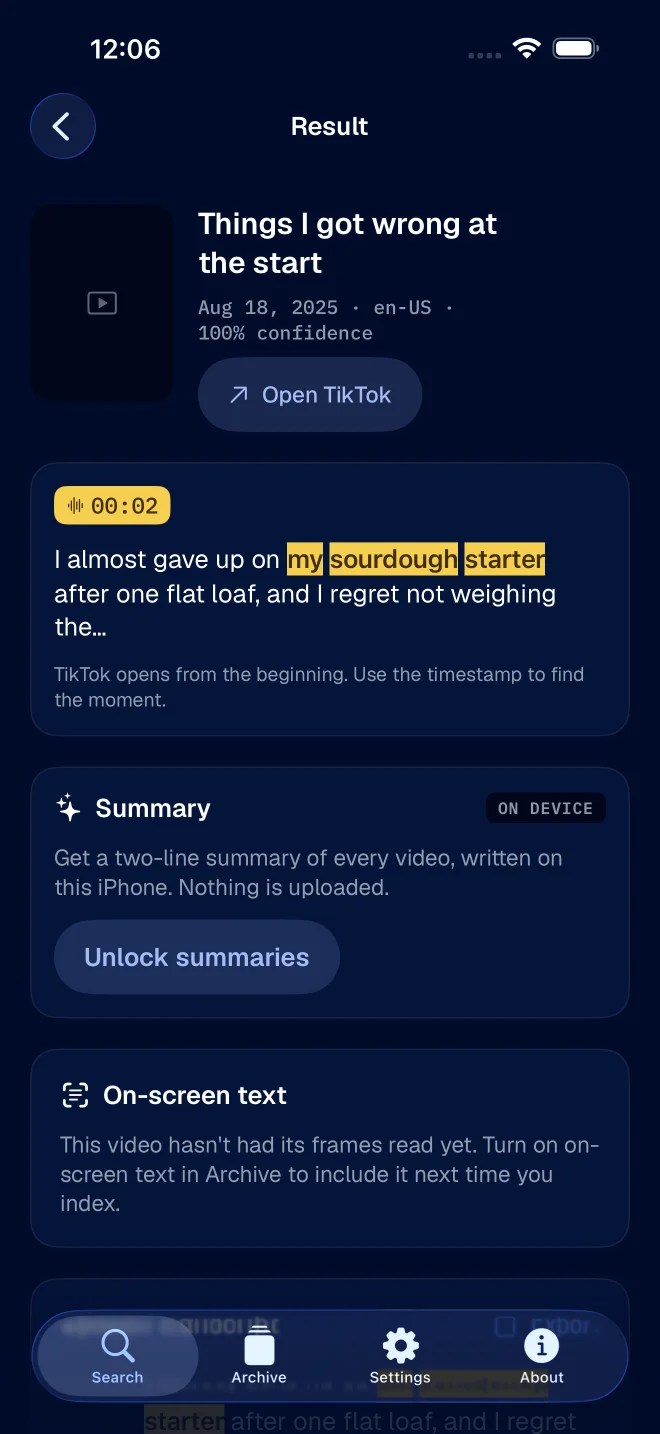
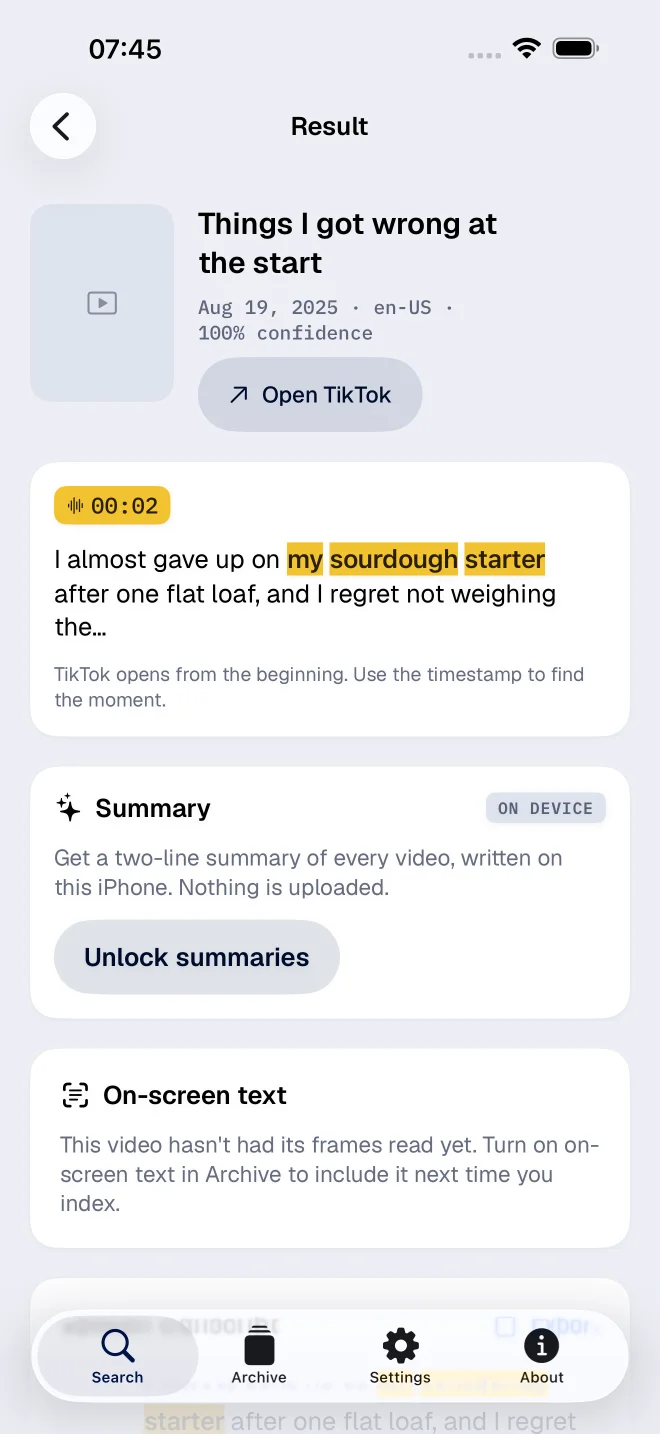
A fair share of TikToks do not talk. A slideshow with a song on it. A recipe where the ingredients appear as a list. A tutorial where each step is a title card and the only sound is the music you picked in thirty seconds. Run a speech transcript over any of those and you get back a short, polite nothing.
The words are there. They are just in the picture, which is a place a transcript does not look.
What counts as on-screen text
The app sorts what it finds into three kinds:
- Title cards. The big text that opens a video or marks a step.
- Burned-in captions. Subtitles that are part of the picture. They are pixels, so no speech engine and no copy-and-paste will touch them.
- Sticker text. The text you dropped on top while editing.
All three are things you typed once, years ago, and never saw as text again.
How it reads them
The app takes about 26 frames from each video, roughly one a second on a short one, and runs Apple’s text recognition on them. That is enough to catch anything that stays up for a second or two, and a title card nearly always does.
Everything happens on the phone. What stays is the text, in the same local index as your transcripts.
What it costs
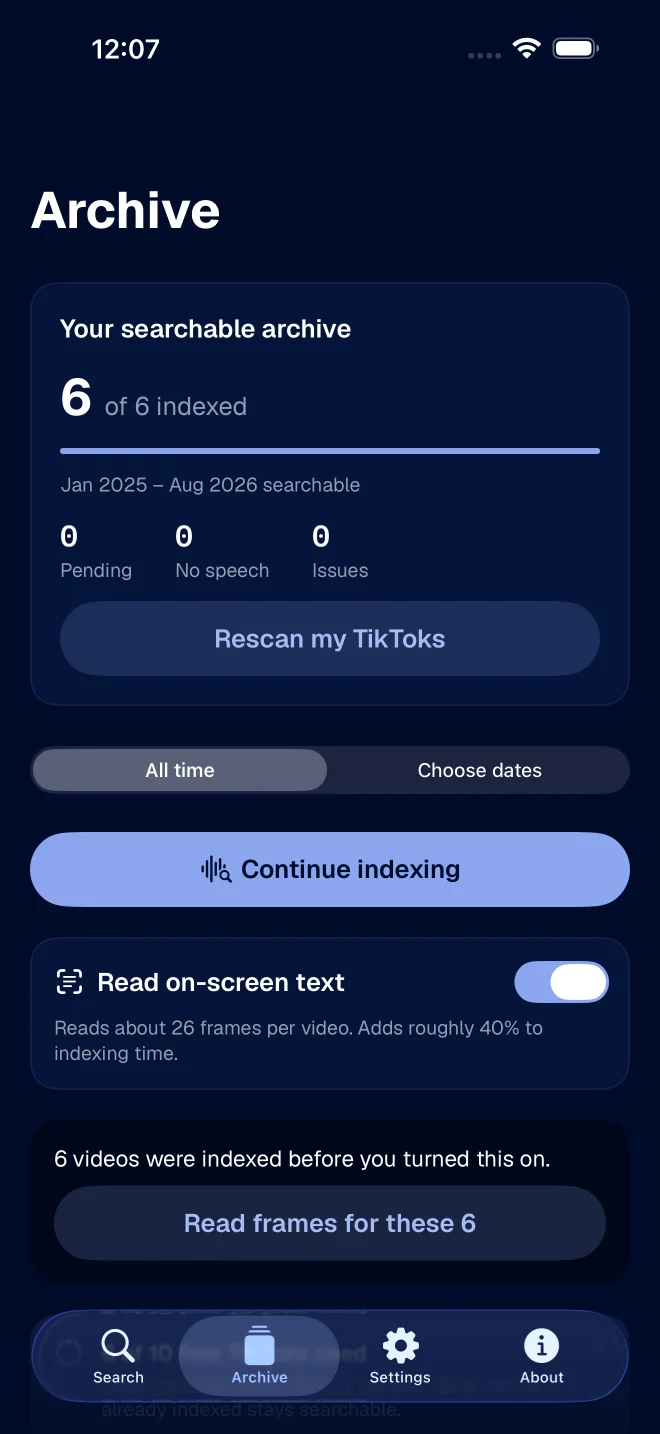
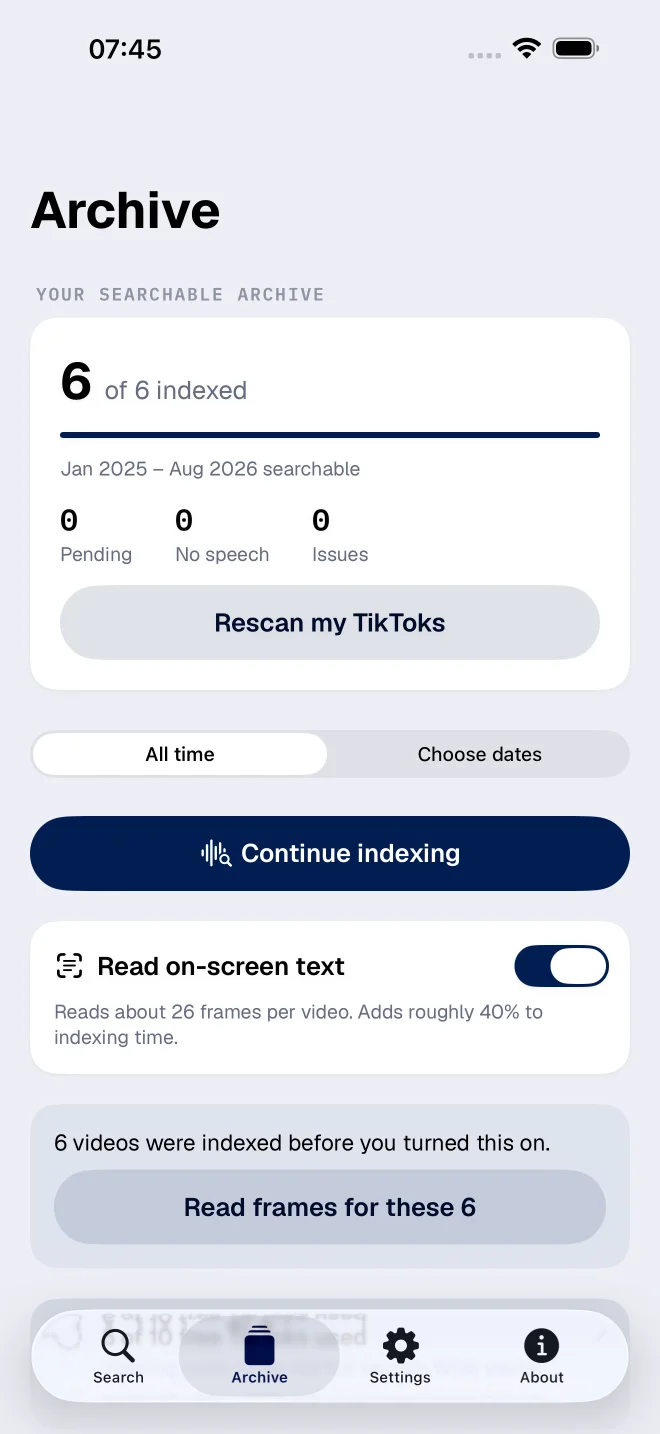
The switch is called Read on-screen text, and the app states the cost on the label before you tap it: about 26 frames per video, and roughly 40% more indexing time. Off, indexing is faster, and burned-in captions and title cards are simply not searchable.
Two details are worth knowing:
- It applies forward. Videos you indexed before turning it on are not re-read behind your back. The app offers to read them later, with an exact count, and waits for you to say yes.
- It is on the Archive screen and in Settings. Same switch in both places.
Searching it
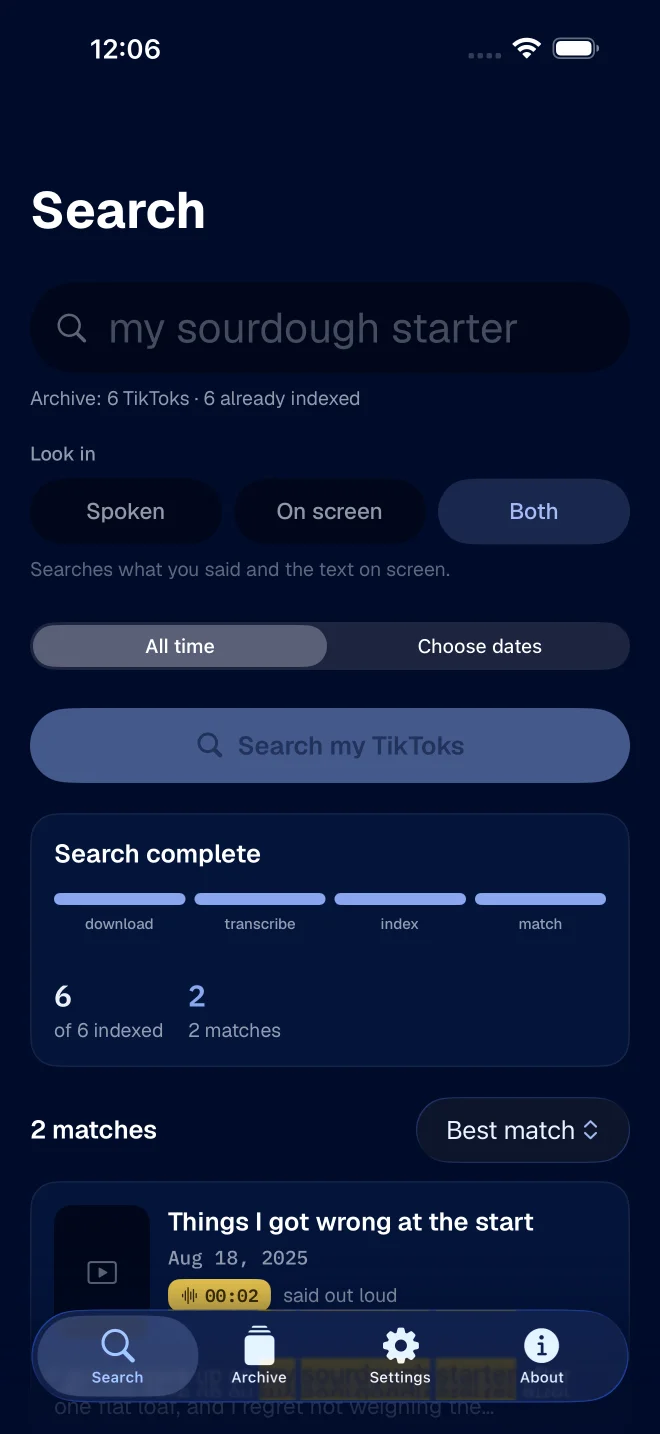
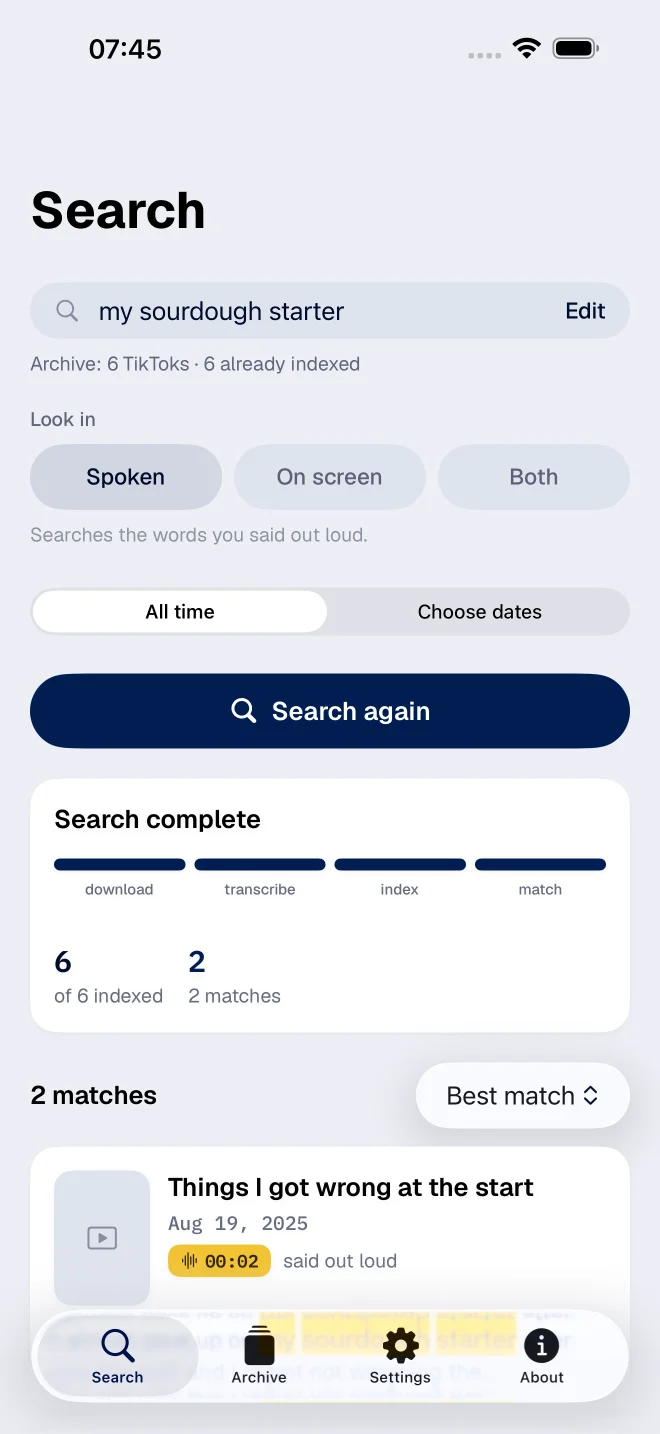
When you search, you choose what to look in: what was said, what was on screen, or both. Both is the right default when you do not remember which one it was. Use on-screen only when you are sure, because it removes every spoken match from the list and makes the list shorter.
The way the words are matched is the same as for speech: case, accents and punctuation are ignored, and you can match a whole phrase, all the words, or just the start of each word. The half-a-sentence guide goes through those.
The honest limits
- A very short flash can slip through. One frame a second is a net, not a scan of every frame. Text that is on screen for a third of a second may not be caught.
- Decorative fonts are harder. Plain type reads well. A script font on a busy background is a coin toss.
- It reads, it does not understand. A sticker that says “wait for it” is found by “wait for it”, and by nothing about what you meant.
For videos where you do talk, the plain transcript is still the main thing. The overview of how both fit together is in making your TikTok archive searchable.